QR code on your invoice: get paid faster

Your customer scans the code with their banking app. Your IBAN, the amount and the description are already filled in, so nothing gets mistyped.

  • IBAN, amount and description filled in beforehand
  • European standard (EPC, also known as Girocode)
  • Also for many invoices at once, from a CSV or Excel file
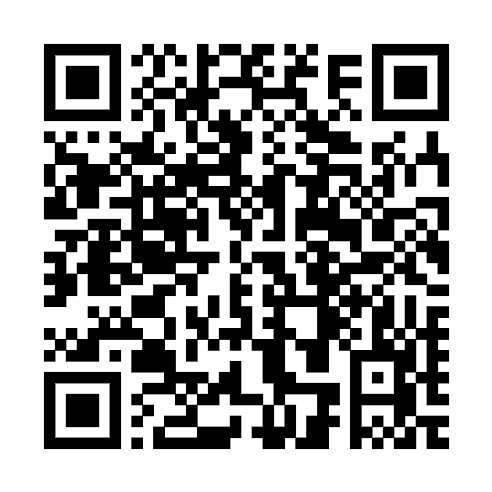
Invoice 2026-014 Example
Amount due
€ 125,50
Example of a payment QR code on an invoice
Scan with your banking app
Test code, do not pay
Reviews of gratisqrcode.nl, by the same team

Already have an account? Log in

1 Complete the content

In short

  • You receive money with a payment request link
  • Create the payment request with your bank
  • Copy that link and paste it into the "Payment request URL" field
  • Payment requests expire after a while, your QR code keeps working
  • You can replace the payment request link with a new one later

Want to know more? Read our blog →

Payment reference or description
Note: a logo, colour gradient, transparent background or low error correction makes the QR code harder for a banking app to scan. Test the printed QR code before you distribute it.
Check the IBAN and name before you print: a payment QR code can no longer be corrected once it has been printed. A frame, logo or low colour contrast makes the QR code harder to scan. Test the QR code with your banking app at the printed size (about 3 cm or larger).
2 Choose the style of your QR Code
The code gets no background of its own, so you can place it on anything.
The frame around your logo becomes transparent as well. If you want a solid patch there, switch on "Custom frame color" under the logo.
None (transparent)
Makes the code's blocks semi-transparent. This does not make the background transparent — use "Transparent background" for that.
Allowed file types: .jpg, .jpeg, .png, .gif, .webp, .svg. Maximum file size: 10 MB.
Removes the modules behind the logo for a cleaner look (recommended). With a transparent background the cut-out itself is transparent too.
Pick your own color for the frame around the logo — for example to keep a white frame on an otherwise transparent QR code.
Quality set to 30% automatically — a logo covers part of the code. You can change this yourself.
Allowed file types: .jpg, .jpeg, .png, .gif, .webp, .svg. Maximum file size: 10 MB.
Upload a background image first to use this mode.
Allowed file types: .jpg, .jpeg, .png, .gif, .webp, .svg. Maximum file size: 10 MB.
px
First choose how you want to get paid.

Create a free account to save your QR code and edit it later.

Create payment QR codes for all your invoices

Upload your Excel or CSV file with one row per invoice. We check every row and show you the first QR codes. Then you download one ZIP with a payment QR code per invoice.

CSV or Excel, 1 MB at most. Up to 500 invoices per file, depending on your subscription.

Does everything go to the same account? Enter the IBAN and the name here once.

Example file: one row per invoice

Name Amount Description
Factuur 2026-014 € 125,50 Factuur 2026-014
Factuur 2026-015 € 80,00 Factuur 2026-015
Factuur 2026-016 € 49,95 Factuur 2026-016
Download the example file

Name IBAN Amount Description

    This is what your first QR codes look like

    Create a payment QR code in three steps

    Enter your IBAN and the name of the payee.

    Add the amount and your invoice number and check the QR code.

    Check the details, save the QR code to your account and place it next to the total on your invoice.

    Want customers to pay with iDEAL or Wero? Create a QR code of your payment link
    Automating from your own software? See the QR code API

    Everything you need to know

    How does a payment QR on an invoice work?

    The QR code contains your name, your IBAN, the amount and the description according to the European EPC standard. A banking app that reads the code prepares the transfer, and the customer only has to confirm it.

    Where do you put it on the invoice?

    Next to the total or below the payment details, with a short text such as "Scan with your banking app". Also keep your IBAN in plain text, for anyone who prefers to transfer it themselves.

    Invoice number as description

    Put the invoice number in the description. Then you can see straight away which invoice each payment is for, with nothing to look up.

    Which banking apps read the code?

    The EPC QR is common on invoices in countries including the Netherlands, Belgium, Germany and Austria. Not every banking app reads it; the generator warns you when a bank is known not to.

    The QR code does not expire

    A payment QR is static: all the details are in the code itself. So it still works years from now, without a subscription and without a page in between.

    Suitable for print and PDF

    Download the QR code as SVG, PNG or PDF. SVG stays sharp at any size, PNG drops straight into your invoice template.

    Frequently asked questions

    These banks support this in the Netherlands: ING, bunq, ASN Bank, Knab. This bank does not support it in the Netherlands: ABN AMRO. These banks support this in Belgium: Argenta, Belfius, BNP Paribas Fortis, ING, KBC, VDK. What matters is your customer's banking app, not yours. So also state your IBAN and the amount in plain text on the invoice, and everyone can pay.
    Yes. Each QR code contains its own amount and description. For many invoices you create them all at once from a file.
    Yes. Upload a CSV or Excel file with the name, IBAN, amount and description on each row, and you get a ZIP with one QR code per invoice.
    You create a single payment QR code with a free account. Creating many QR codes at once from an Excel or CSV file is part of a subscription.
    No. A payment QR code is static: the IBAN, the amount and the description are in the code itself. If something changes, create a new code and replace the old one on your invoice.
    Yes. With API access on your account, your invoicing or accounting software creates a payment QR code for each invoice. Use the type epc with the payment details of the invoice.